Quick Start
This guide shows the quickest way to get the standard ForeFire example simulation running using its interactive web console, powered by Docker. This method bundles all dependencies, so you don’t need to install them on your host system, and is the only way to run ForeFire on Windows.
Prerequisites
Docker installed and running on your system.
Git installed (for cloning the repository).
Steps
Clone the ForeFire repository: Open your terminal and run:
git clone https://github.com/forefireAPI/forefire.git
Build the Docker image:
Navigate into the cloned repository directory. The Dockerfile defines the environment. Build the image with:
cd firefront
docker build . -t forefire:latest
This might take a few minutes the first time as it downloads base images and installs dependencies inside the Docker build environment.
Run the container interactively:
This command starts the container, maps port 8000 for the web interface, and gives you a bash shell inside the container:
docker run -it --rm -p 8000:8000 --name ff_interactive forefire bash
Inside the container, navigate to the test directory:
Your terminal prompt should now show you are inside the container (e.g., root@<container_id>:/app#). Navigate to the test directory:
cd tests/runff
Start the ForeFire interpreter:
forefire
Launch the HTTP server from the ForeFire console:
Type the following command at the forefire> prompt:
forefire> listenHTTP[]You should see output like: >> HTTP command server listening at http://localhost:8000
Access the Web Console:
Open your local web browser (on your host machine, not inside the container) and navigate to http://localhost:8000/.
Run a Simulation:
In the web console’s command input box, type: include[real_case.ff] and press Enter or click Send.
Click the “Refresh Map” button.
You should see a simulation running in the Aullène region of Corsica.
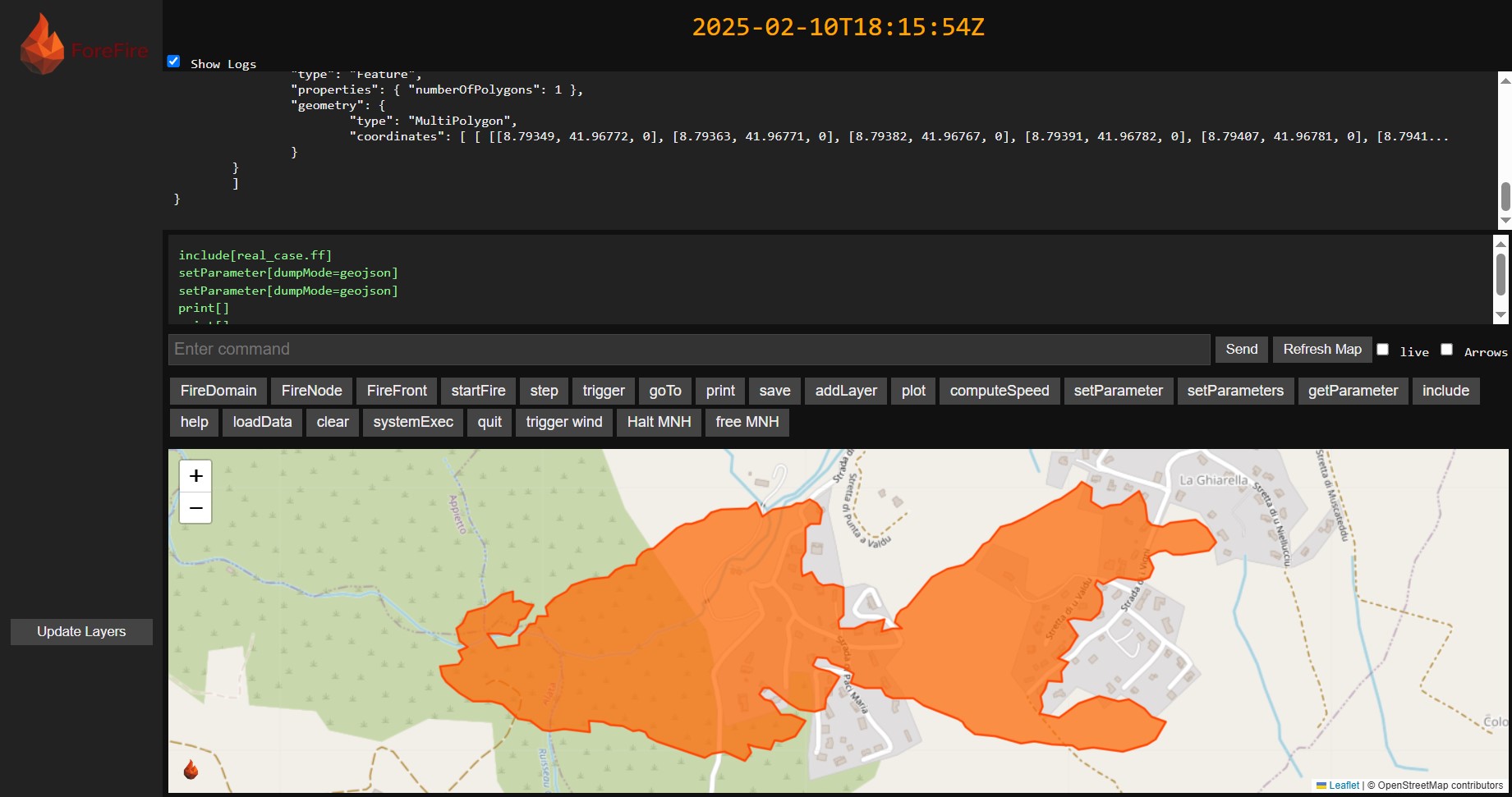
This confirms your Docker setup is working! For other ways to run ForeFire scripts (like directly from the command line), see the Running an Example page.
Stop the Container:
When finished exploring:
In the ForeFire console (either web or terminal inside the container), type quit.
In the container’s bash shell (terminal), type exit.
The docker run command used –rm, so the container will be automatically removed upon exit.